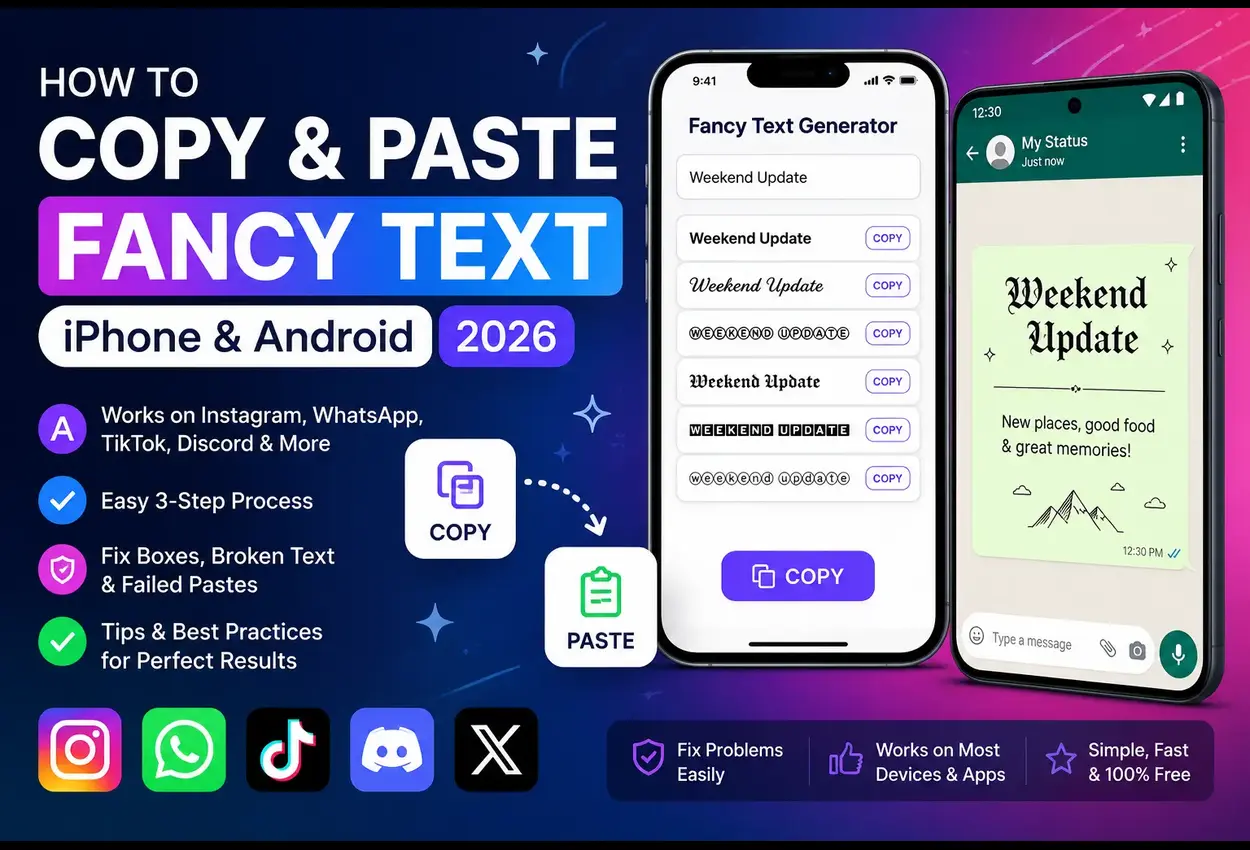
How to Copy & Paste Fancy Text iPhone & Android 2026
Why Fancy Text doesn’t work on Mobile?
Sometimes you copy and Paste fancy text from fancy text generator into mobile and see something like □□□, ??? or broken characters. It doesn’t mean there is a problem in the tool: these fancy texts are made of unicode characters, these are not font files, instead of some older devices, specific apps don’t support those specific unicode characters. These problems are fixable, below are the fixes.
3 Reasons Your Fancy Text May Not Work & How to Fix Them
Here are the three most common reasons and simple ways to fix them:
Reason 1: Fancy Text Appears as Boxes or Question Marks
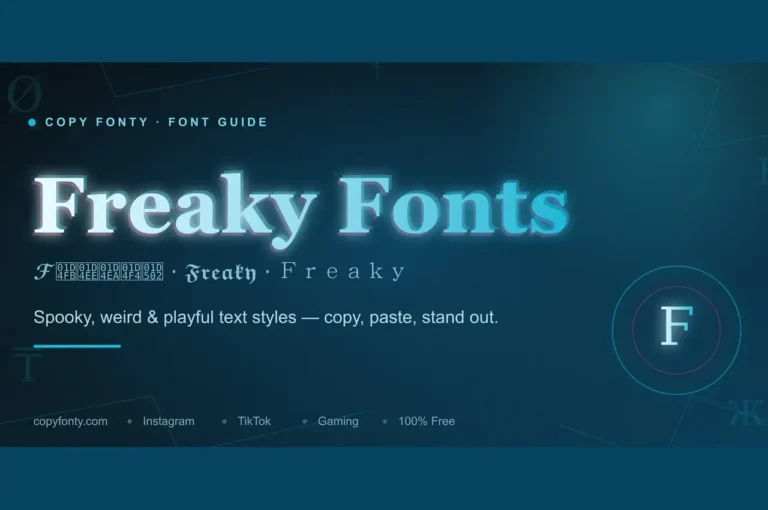
If you see small squares or question marks instead of letters, your device or app may not have the right font to display that specific Unicode character.
How to Fix It?
Try another style like, bold or italic, because these styles usually use more common Unicode characters. Avoid overly decorative or rare styles when you want your text to work on different devices.
You can also remove extra symbols & marks around the letters. If only a few characters look wrong, replace those characters with normal text.
Reason 2: Fancy Text Looks Different on Another Device
Sometimes fancy text may look a bit different on an iPhone, Android phone, or computer. This is normal because different devices and apps may use different fonts to display Unicode characters.
How to Fix It?
There may be nothing to fix if the text is still readable and the correct characters are showing. Before posting important text, always check it on the device or app where you want to use it.
For usernames, bios, or important information, simple and readable styles are usually the safest choice.
Reason 3: An App Removes or Rejects Special Characters
Some apps or text fields may remove specific special characters when you paste or save them. This can happen more frequently in usernames and other fields with character limitations.
How to Fix It?
First, copy the text again and test it in a simple app such as Notes or Keep. If it works there, copy it again and try the desired app.
You can also try a shorter phrase, remove decorative symbols, or use a simpler style. If a specific app still removes the characters, that field may simply not support them.
Tip: Always keep a plain-text version of important usernames, bios, and messages. This makes it easy to switch back if a fancy style does not work.
Platform Compatibility
How to Copy & Paste Fancy Text?
Here are simple & easy three steps below:
Step 1: Type your simple text into the top box.
Step 2: Pick a style which you want.
Step 3: Paste it in the desired place.
How to Copy Fancy Text on Your iPhone?
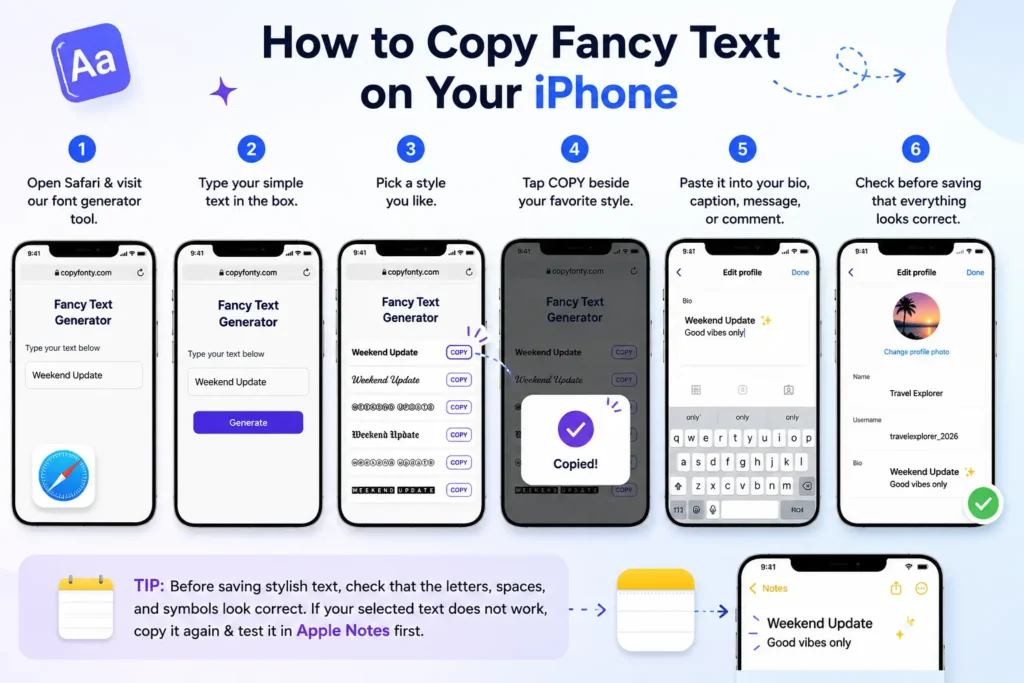
In your iphone open Safari & visit our font generator copy paste tool, then type your simple text in the box. Pick a style you like & copy it, then paste it into your bio, caption, message, or comment. Before saving stylish text, check that the letters, spaces, & symbols look correct. If your selected text does not work, try copying it again & test it in Apple Notes first.
Fancy Text Best Practices
Use Fancy Text Generator to make your simple text fancy, copy your favorite style, and paste it into Instagram, WhatsApp, TikTok, Discord, or other apps. Always choose simple & easy to read styles because overly style characters can be shown as boxes or look different on some devices. If the text does not paste or disappears then test it in Notes or Keep and try a simpler style. Always keep important details like names, links, dates, and contact information in normal text.
Important Note for Everyone
People who use screen readers may hear Unicode styled text read out strangely, for example, “𝗴𝗮𝗺𝗲𝗿” might be read as “mathematical bold small g” instead of “gamer.” For decorative text like Instagram bios & captions, this is fine. But for important information, always keep it in plain text so everyone can read it easily.
CopyFonty is also available on Product Hunt, where you can see the product page and follow future updates.
Frequently Asked Questions
When you paste and then save the fancy text in instagram caption, it may reject it so always test or check it before using different fancy styles in captions.
A box mostly appears when your phone or app cannot display a specific fancy character. So try a simpler style, remove weird symbols, or replace the broken character with normal text.
No, there is no need to download or install any file or software, just copy and paste, its completely free.
Some apps remove specific fancy characters when you save the text. Try a shorter phrase, remove unusual symbols, or use a simpler style. You can also try using a bio or display name field instead of a username field.
You may not have copied the text fully or properly or platform may have rejected, try a different simpler style.
Yes, you can use fancy text in username as well as comments, bios and captions.